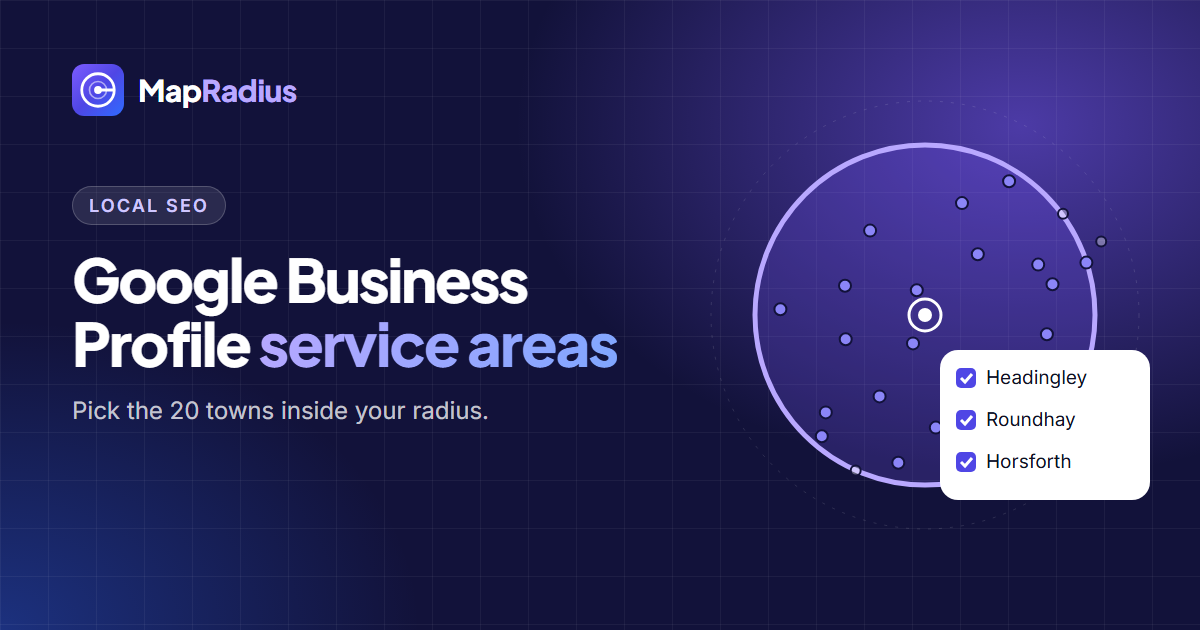
To choose Google Business Profile service areas, draw a radius around the place you work from, list the towns inside it, and add up to 20 of them in your profile. A radius map turns “where do we go?” into a list of real place names you can paste in.
What a service area is in Google Business Profile
A service area tells Google where a business travels to its customers. Plumbers, cleaners, electricians, mobile mechanics and delivery services set one instead of, or as well as, a shop address. Google accepts up to 20 service areas per profile. Each one is a named place, such as a city, a town, a neighbourhood or a postcode area.
Google doesn’t let you enter a radius in the profile. You enter place names. A radius map bridges that gap: it shows which places sit inside the distance you are willing to travel.
The 4 steps
- Set your base. Search your address in the Map Radius Tool, or press Locate me if you are at the business.
- Set the radius you really cover. A plumber who takes jobs up to a 30-minute drive might set 15 miles (24 km). Keep it honest: a wider radius doesn’t help if you can’t serve the far edge. If travel time matters more than distance, read radius map vs drive-time map.
- Read the Areas inside the circle list. The tool lists every named city, town, neighbourhood and village inside the radius, nearest first. The guide to finding cities and towns within a radius explains which places the list includes at each circle size.
- Tick up to 20 and press Copy for GBP. The list copies one place per line, ready to paste.
How to pick the right 20
Most radius circles hold more than 20 places. A 10-mile (16 km) circle around a city centre often holds 80 to 150 named neighbourhoods. Use 3 rules to narrow it down:
- Choose places customers search for. “Plumber in Headingley” is a real search. A tiny hamlet name usually isn’t.
- Cover the whole circle. Spread your 20 across the north, south, east and west. The direction column in the list helps here.
- Prefer towns over streets. Google matches service areas to known places. Cities, towns and well-known neighbourhoods match cleanly.
Add them in Google, one by one
Open your Business Profile, go to Edit profile → Location and areas → Service areas, and type each name. Google suggests matching places as you type. Pick Google’s suggestion for each one, not your own spelling. Google decides which areas it accepts, so check every entry before you save. Google’s help page on managing service areas covers the details.
When the Map Radius Tool runs with Google Places active, the copied names use Google’s own wording, for example “Snelgrove, Brampton, ON, Canada”. That makes the suggestions easier to match.
Common mistakes
- Listing places you don’t serve. Customers who call from outside your real area become cancelled jobs, and it goes against Google’s guidelines for representing your business.
- Using 20 tiny places. Twenty small neighbourhoods in one corner leave the rest of your circle empty.
- Forgetting to update. Moved your van base or hired a second team? Redraw the radius and refresh the list.
Next step
Open the Map Radius Tool, draw your circle, and use Select nearest 20 as a starting point. Swap out any place you don’t want, then press Copy for GBP.